Guide
Bahnmonitor as an app on your phone and computer
Bahnmonitor is a web app: you install it straight from the browser, without an app store. Afterwards it starts like a normal app, with its own icon and without an address bar.
iPhone und iPad
- Open bahnmonitor.de in Safari and sign in.
- Tap the share icon (square with arrow up – depending on iOS version via “…” first).
- Choose “Add to Home Screen”, keep the name “Bahnmonitor”, tap “Add”.
- Start the app from the home screen and tap “Allow on this device” under Settings → App notification. On iPhone this only works in the app installed this way.
Android
- Open bahnmonitor.de in Chrome and sign in.
- Menu ⋮ top right → “Install app” (sometimes “Add to Home screen”).
- Confirm – the icon is now on your home screen.
- Under Settings → App notification “Allow on this device”.
Computer with Chrome or Edge (Windows, Mac)
- Open bahnmonitor.de and sign in.
- Chrome: install icon on the right of the address bar (screen with arrow) or menu ⋮ → “Cast, save and share” → “Install page as app”.
- Edge: menu … → “Apps” → “Install this site as an app”.
- On Windows the app is then in the Start menu; right-click → “Pin to taskbar” or create a desktop shortcut.
Mac with Safari
- Open bahnmonitor.de in Safari and sign in.
- Menu “File” → “Add to Dock”.
Depending on the browser version the menu items are named slightly differently. Something not working: help button at the bottom right.
The icon matches your design

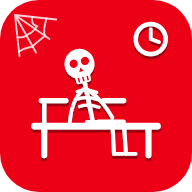
Browser tab and app icon show the design you chose under Settings → Appearance. In the tab it changes immediately. On your phone and in the dock the icon stays as it was when added – after switching, remove the app once and add it again.
Your design right now: Waiting-room red. Change
So the alerts reach you
- Telegram: Settings → “Connect Telegram”, press “Start” once in the bot. Most reliable, even when the app is closed.
- E-mail: click the link in the confirmation e-mail.
- App notification: allow once per device (see above).
- Finally “Send a test alert via all channels” – then you know what arrives.